
In 2026, cybersecurity is no longer just a corporate concern it is a personal necessity. With the rise of automated stealer malware, sophisticated AI-driven phishing scams, and complex network intrusions, relying on default settings is a recipe for disaster.
If you want to know how to protect yourself online, you cannot rely on a single software or a magic setting. Security is built in layers.
This technical, step-by-step checklist will guide you through hardening your digital footprint across five critical defense layers.
Phase 1: Identity & Account Security (The Gateway)
Your online identity is only as secure as your authentication mechanisms. If a hacker breaches your primary accounts, they control your life.
Ditch the Browser Vault: Stop saving your credentials inside Google Chrome, Microsoft Edge, or Safari. Automated info-stealers bypass browser security with ease.
👉 Read our full guide on this: Are Password Managers Safe? Bitwarden vs KeePass Security Deep Dive to learn how to store your credentials safely.
Enforce Strong Master Keys: Use enterprise-grade encryption (AES-256) locally or via the cloud to isolate your vault and protect your master passwords from brute-force attempts.
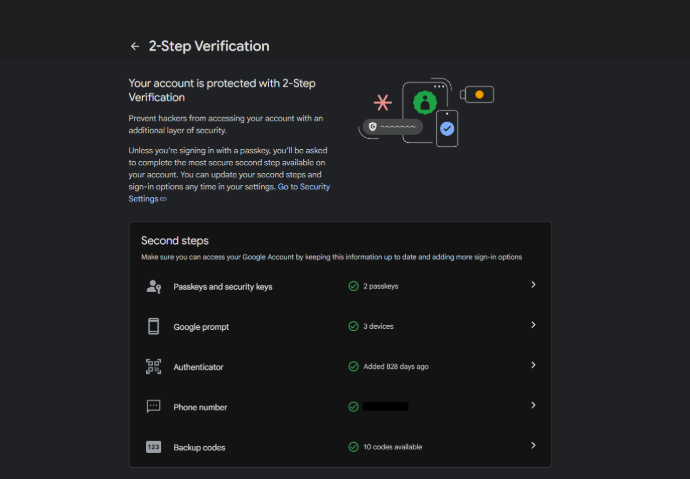
Implement Proper Two-Factor Authentication (2FA): Never use SMS-based 2FA; it is highly vulnerable to SIM-swapping attacks. Instead, use Time-based One-Time Password (TOTP) apps like Google Authenticator or Aegis, or hardware security keys (YubiKey).
Phase 2: Device Hardening Guide
Your PC and mobile phone are your daily endpoints. Leaving them on default configurations leaves doors open for malicious background processes.
Audit Mobile Permissions: Regularly inspect your smartphone for malicious persistence mechanisms. If you suspect your privacy is compromised or notice strange battery behavior, follow our step-by-step tutorial to 👉 Scan Your Phone for Hidden Spy Apps before it's too late.
De-bloat and Secure Windows: Turn off aggressive system telemetry, enable Core Isolation in Windows Defender, and ensure your system architecture does not rely on sketchy, unverified configurations. 👉 Check our deep dive analysis on this: AtlasOS vs ReviOS: Are Windows Optimization Playbooks Safe? to see how these setups disable essential security mitigation settings and compromise user access control.
Enforce Device Encryption: Enable BitLocker on Windows and File-Based Encryption (FBE) on Android to guarantee that if your physical device is stolen, your data remains unreadable gibberish.
Phase 3: Home Network Security
Your home router is the perimeter firewall of your digital house. If a hacker intercepts your router, they can perform Man-in-the-Middle (MitM) attacks on every connected device.
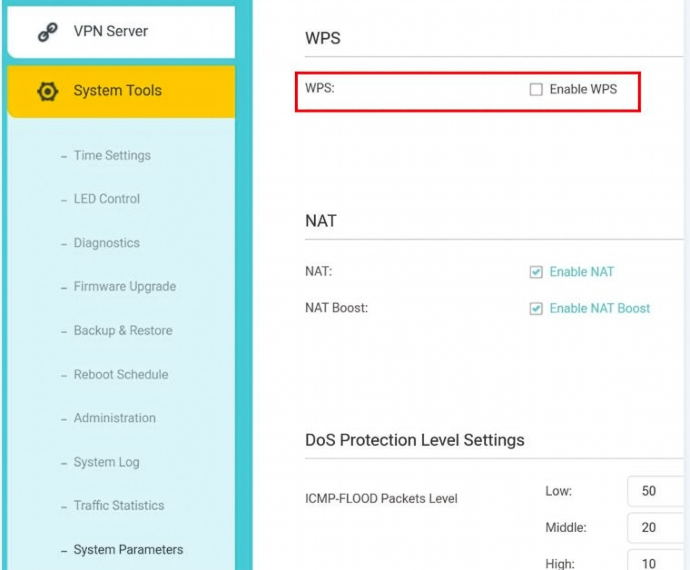
Disable Dangerous Defaults: Log into your router’s gateway right now. Change the default admin credentials and completely disable WPS (Wi-Fi Protected Setup), which can be easily cracked via automated brute-force scripts.
Isolate Your IoT Devices: Smart TVs, smart bulbs, and cheap IP cameras rarely get security updates. Create a separate Guest Network on your router specifically for these devices, preventing a compromised camera from sniffing traffic on your primary workstation.
Encrypt Your DNS Queries: Change your DNS provider from your ISP's default to a secure provider (like Cloudflare 1.1.1.1 or Quad9 9.9.9.9) and enable DNS-over-HTTPS (DoH) to encrypt your web-browsing requests.
Phase 4: Data Privacy & Environment Isolation (The Core)
When interacting with risky files or testing unauthorized software, you must prevent threats from reaching your host operating system.
Isolate Untrusted Environments: Never run suspicious executables or test untrusted programs directly on your primary machine. Set up a secure virtualization layer and read our technical breakdown on 👉 How to Safely Isolate a Virtual Machine from the Host to block malware escape paths.
The 3-2-1 Backup Rule: Ransomware can strike at any moment. Keep 3 copies of your data, stored on 2 different types of media (e.g., an external SSD and local backup), with 1 copy kept completely offline or in an immutable cloud vault.
Phase 5: The Human Firewall (OpSec Awareness)
The most secure architecture will fail if the human user willingly hands over the keys.
Analyze Before Clicking: Sophisticated phishing campaigns now use Look-Alike Domains (Typosquatting). Always inspect the actual URL structure before typing a password.
Verify Identity Out-of-Band: If a service provider, coworker, or bank contacts you asking for sensitive details, hang up. Contact them through an official, verified channel to confirm the request.
Summary Checklist: Your Path to Absolute Hardening
| Defense Layer | High-Priority Action | Threat Mitigated |
| Identity | Migrate to a dedicated password manager + App-based 2FA | Credential Stuffing & SIM-Swapping |
| Endpoints | Run permission audits + Enable full-disk encryption | Info-Stealers & Physical Theft |
| Network | Disable WPS + Segment IoT devices into Guest Networks | MitM Attacks & Lateral Movement |
| Isolation | Run untrusted files inside hardened virtual machines | Host OS Infection & Ransomware |
❓ Frequently Asked Questions (FAQ)
Q1: Is a strong master password enough to secure my password manager?
A: No. If your device is infected with an info-stealer malware, it can log your master password or dump your unlocked vault from memory. You must combine a strong master password with app-based or hardware-based 2FA (like TOTP or YubiKey) to ensure absolute security.
Q2: Why is disabling WPS on my router so critical?
A: WPS (Wi-Fi Protected Setup) uses a simple 8-digit PIN that can be easily brute-forced in hours using automated tools, completely bypassing your complex Wi-Fi password. Disabling it is the single most important step in securing your home network.
Q3: Can antivirus software protect me from all phishing attacks?
A: No. Antivirus software guards against malicious code, but it cannot stop human error. Modern phishing campaigns use sophisticated look-alike domains (Typosquatting) that don't rely on malware, but rather on tricking you into willingly typing your credentials. You are the ultimate firewall.