
Most internet users treat their home router as an invisible appliance—plugged in once, hidden behind a desk, and forgotten. In reality, your router is the single most critical chokepoint in your entire digital infrastructure. It is the literal gateway between your private local devices and the hostile public internet.
Leaving your router on its default factory configuration introduces a massive security vulnerability to your network. If an attacker compromises this edge device, they gain the ability to intercept unencrypted traffic, execute Man-in-the-Middle (MitM) exploits, and redirect your browser to credential-harvesting phishing pages. This technical guide delivers a step-by-step hardened blueprint to isolate your home infrastructure and achieve absolute network-level defense, serving as a core component of The Ultimate Personal Cybersecurity Checklist required to maintain a bulletproof digital perimeter.
Why Default Home Router Security Configurations Are a Critical Risk
When a router arrives from an Internet Service Provider (ISP) or manufacturer, it is optimized for immediate deployment and ease of use, not robust defense. This optimization means they ship with widely known default administrator credentials, pre-shared Wi-Fi keys, and vulnerable remote management protocols enabled by default.
Automated botnets continuously scan the public IPv4 space looking for residential routers responding on standard management ports. If your device is running stock settings, it takes less than three seconds for an automated script to compromise the firmware, pivot into your local area network (LAN), and target your personal assets.
Hardening the Admin Panel: Step-by-Step
The administrative panel is the brain of your network device. If this interface is exposed or easily accessible, your entire architecture falls like a house of cards. To mitigate this risk, you must eliminate default entry vectors immediately.
🛠️ Core Administrative Actions:
Change Default Credentials: Replace factory administrative passwords with a complex, 16-character string stored securely in your password manager.
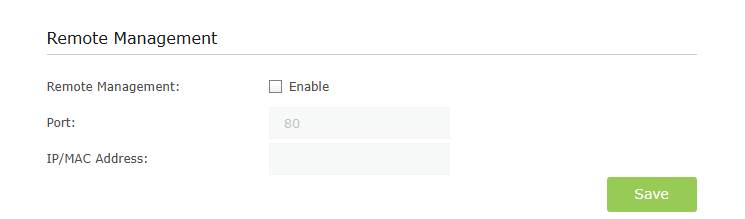
Disable Remote Management (WAN Access): Ensure the router's admin panel is only accessible from devices physically connected via Ethernet or a trusted local wireless layer. Never allow configuration requests from the public internet side.
Deactivate UPnP (Universal Plug and Play): UPnP allows software applications inside your network to automatically open firewall ports without user authentication. While convenient for gaming consoles, sophisticated malware families exploit UPnP to punch holes directly through your perimeter defenses.
Comparison of Encryption Standards: WPA2 Encryption vs WPA3 Encryption
Before deploying your wireless networks, it is critical to understand why transitioning from legacy WPA2 Encryption to modern WPA3 Encryption is non-negotiable for robust data protection.
| Security Metric | WPA2 (Pre-Shared Key) | WPA3 (Simultaneous Authentication of Equals) |
| Brute-Force Protection | Vulnerable to offline dictionary attacks if a handshake is captured. | Immune to offline password guessing via strict cryptographic handshakes. |
| Forward Secrecy | Disabled. If the master key is leaked, past captured traffic can be decrypted. | Enabled. Every session utilizes unique ephemeral keys to protect historical data. |
| Legacy Hardware Support | Universal (Compatible with virtually all devices built post-2006). | Limited to modern network interface cards and updated operating systems. |
| Management Frame Protection | Optional (Rarely enforced, leaving networks open to deauthentication attacks). | Mandatory (Prevents attackers from forcefully disconnecting your nodes). |
Network Segmentation: Deploying the Guest Network
One of the most dangerous architectural flaws in a modern home network is mixing high-security personal devices (laptops, phones) with unmonitored Internet of Things (IoT) appliances (smart TVs, smart plugs, IP cameras). IoT devices are notorious for unpatched firmware vulnerabilities and zero built-in security controls.
🛠️ The Fix: Secure Segmentation
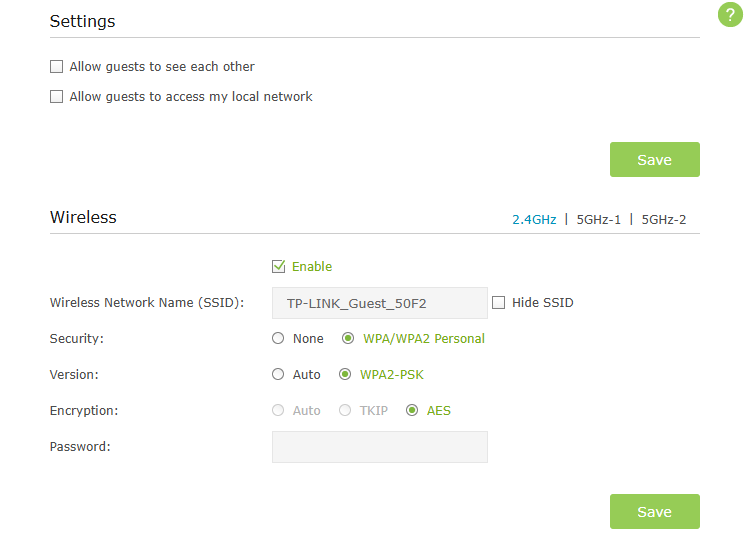
To isolate these vectors, enable your router’s Guest Network Feature to broadcast a completely separate SSID. Move all IoT appliances, smart televisions, and visitor devices to this auxiliary layer.
Crucially, check the administrative box that says "Enable Device Isolation" or "Block Guests from Accessing local LAN." This ensures that if a cheap smart plug is compromised by a malicious payload, the attacker remains trapped on that segment, unable to see, sniff, or interact with your primary host system.
The Pros and Cons of Customized Router Firmware
The Pros: Stripping factory bloatware, unlocking advanced enterprise firewall routing scripts, deploying localized VPN clients directly at the hardware layer, and receiving continuous open-source security patches long after the vendor drops official lifecycle support. Similar to optimizing a host system using Windows Optimization Playbooks like AtlasOS or ReviOS to minimize background overhead, custom firmware strips vendor limitations to maximize network efficiency and security control.
The Cons: High risk of permanently bricking the physical hardware device during an improper flash execution, complete loss of manufacturer warranty agreements, and a steep technical learning curve for advanced routing configurations.
Advanced Defense: DNS Hardening and Firmware Lifecycles
To completely lock down your edge perimeter, you must control how your devices resolve external web addresses and how often the core software is maintained.
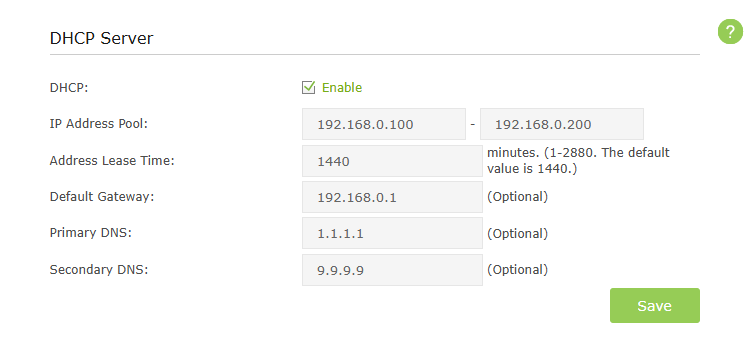
Implement Secure DNS: By default, your router utilizes your ISP's native DNS servers, which log your browsing history and lack encryption. Change your WAN DNS allocation to privacy-centric upstream providers like Cloudflare (1.1.1.1) or Quad9 (9.9.9.9), and activate DNS over HTTPS (DoH) or DNS over TLS (DoT) if your firmware supports it.
Enforce Manual Patch Management: Unlike modern operating systems, many standard home routers do not auto-update. Set a recurring 30-day calendar reminder to log into your gateway panel, check for structural firmware updates, and flash them immediately to mitigate discovered remote code execution (RCE) vulnerabilities.
Conclusion
A truly secure network is built on the principle of zero trust at the entry-point. By taking ownership of your routing hardware, changing entry vectors, and splitting your network architecture into distinct security zones, you neutralize the vast majority of automated script threats before they ever hit your computer's local firewall. Treat your gateway as a fortified wall: if the entry boundary is ironclad, the safety of your internal devices increases exponentially.
❓ Frequently Asked Questions (FAQ)
Q1: Is hiding my Wi-Fi SSID an effective security strategy?
Answer: No. Hiding your SSID provides "security through obscurity," which is entirely useless against actual attackers. Free network scanners like airodump-ng can instantly detect hidden networks by sniffing management frames when authorized devices attempt to connect to them. Focus on strong WPA3/WPA2 encryption instead.
Q2: What should I do if my router is no longer receiving firmware updates from the manufacturer?
Answer: If your device has reached End-of-Life (EOL), it is a severe security risk. You should either replace the hardware entirely or, if supported, flash an alternative open-source firmware like OpenWrt or DD-WRT to keep the device updated with critical security patches.
Q3: Does changing the router’s local IP address (e.g., from 192.168.1.1 to 10.0.0.1) stop hackers?
Answer: It stops basic, non-targeted automated malware scripts that expect default subnet layouts, but it will not stop an active attacker. A simple subnet scan taking less than a second will reveal the new local gateway IP address.